Startup Manager
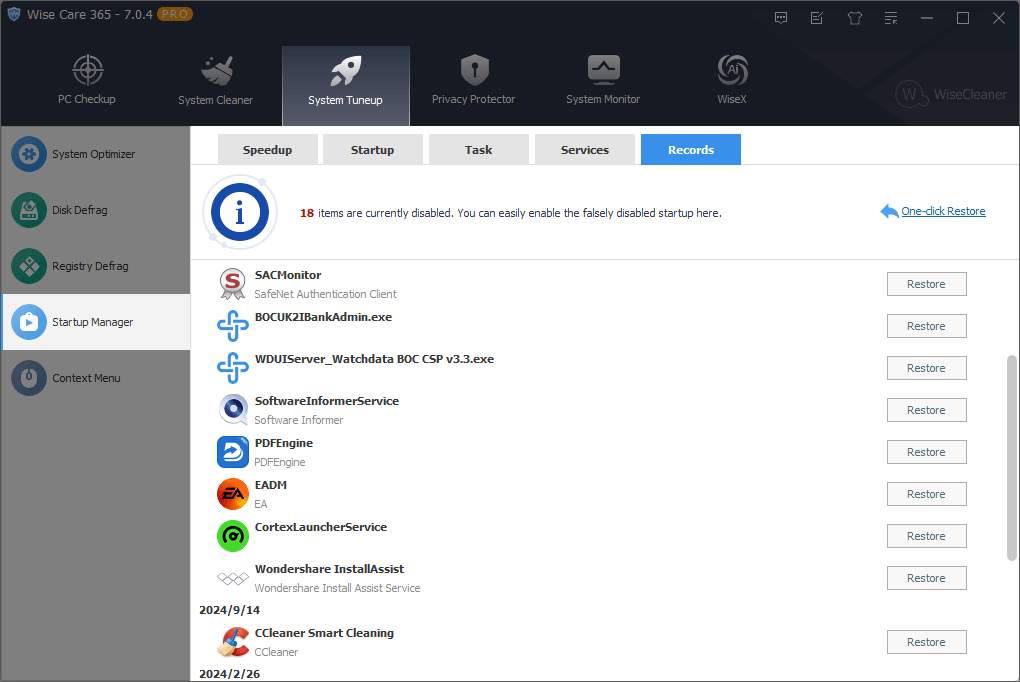
When the system starts, some software will automatically run, this will slow down the system startup speed. Startup Manager can close these automatically running programs to speed up the system startup speed.
It has five tabs: Speedup, Startup, Task, Services, and Records.
1. Speedup
This feature requires a Wise Care 365 Pro license. Buy it now!
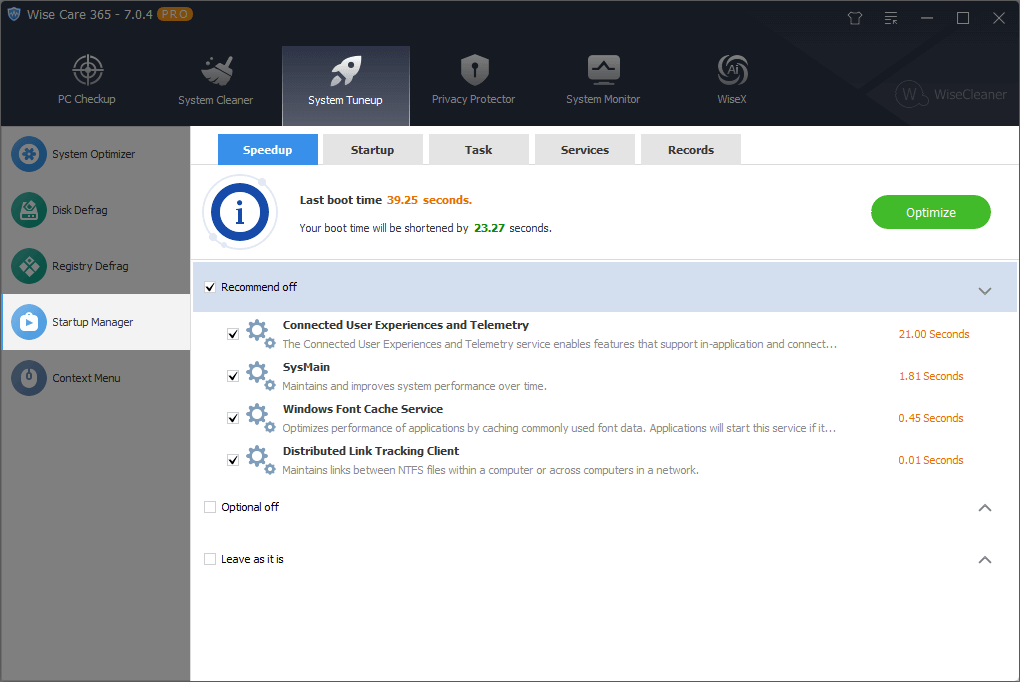
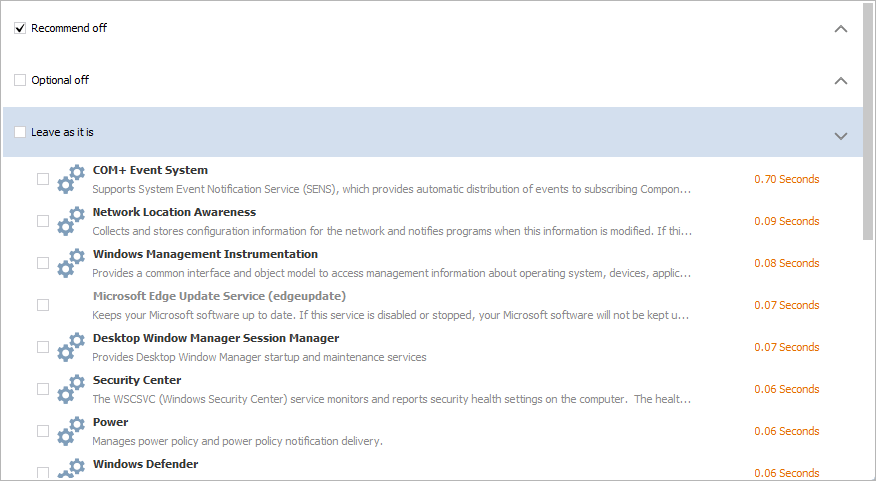
The Speedup panel divides the programs and services that run automatically at startup into three categories: Recommend Off, Optional Off, Leave as it is.
After selecting the services and programs that want to be closed, click the Optimize button to disable the selected programs and services from running automatically when the system starts.
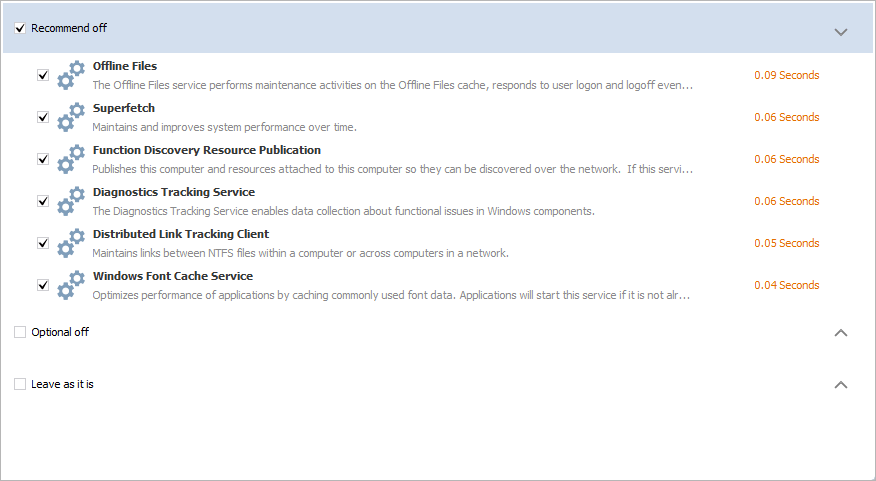
Recommend off
The services and programs will not affect the system's stability after being disabled.
Optional off
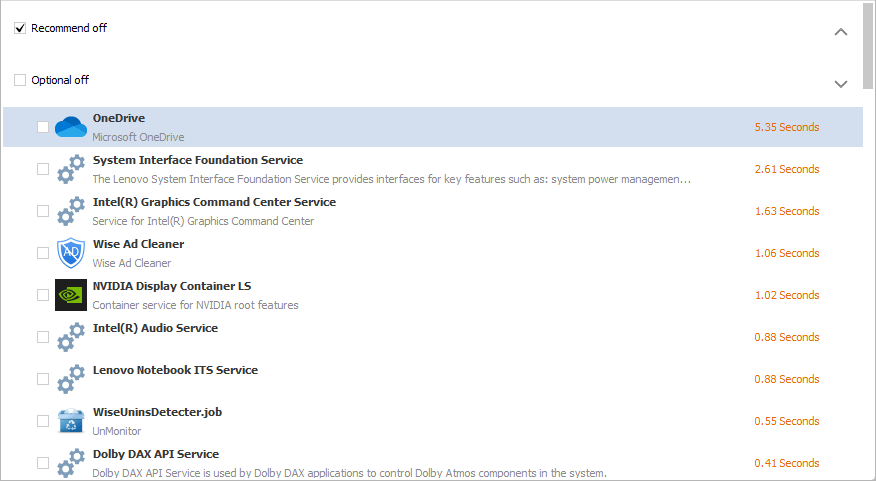
After closing these programs or services, it may cause that some of the additional functions of the program cannot be run automatically, and need to be run manually.
For example, OneDrive, if it does not run automatically when the system starts, its icon will not be displayed in the notification area, and files on the local and OneDrive server will not be automatically synchronized and updated. You need to start OneDrive manually.
Therefore, Optional Off means the programs that do not need to run automatically can be closed.
Leave as it is
There is no need to change the current state of services and programs. Most of them are the services of Windows system. Please DO NOT optimize them unless you are sure they can be disabled.
2. Startup
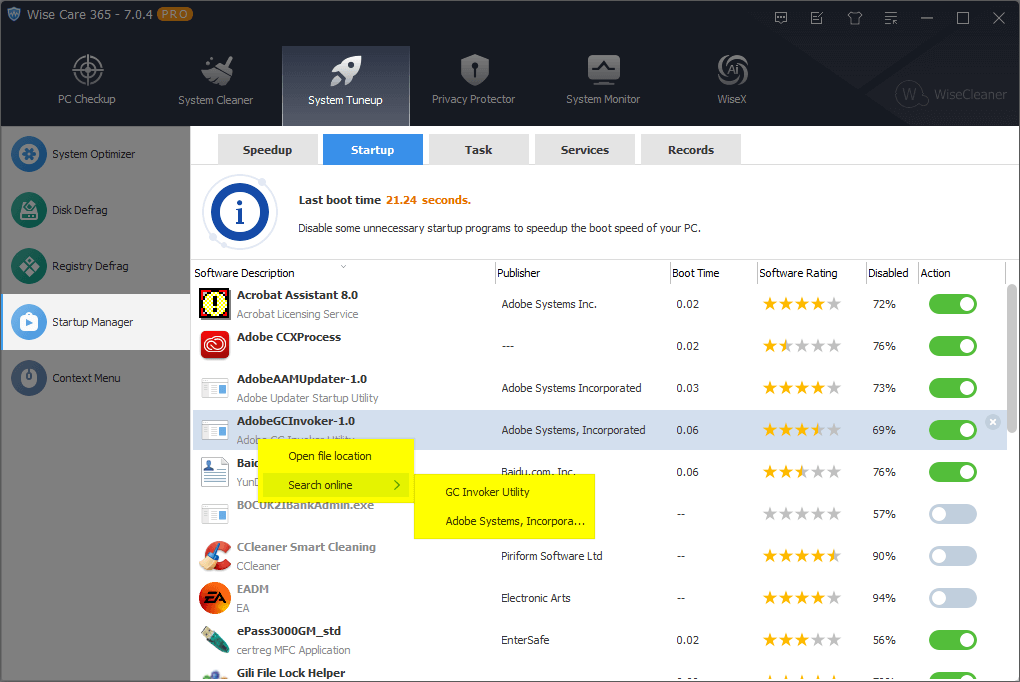
It displays the programs that run automatically when the system starts.
Turn ON/OFF
 , It means the program will run automatically when the system starts. Click the button to change the startup type to Disable.
 , It means the program does not run automatically when the system starts. Click the button to change the startup type to Enable.
Deletion
 , When you hover the mouse pointer over an item, a delete icon appears in the top-right corner of the toggle button; clicking this icon permanently removes the item from the system startup list.
"Delete" here does not mean uninstalling the program, but rather removing it from the auto-run list. Once deleted, Wise Care 365 cannot set the program to run automatically again; the program must be reinstalled to add it back to the auto-run list.
Right-click menu in Startup
Right-click a startup program, you will see the context menu with 2 options: Open file location, Search online.
Open file location
This action will open the program directory.Search online
It has 2 sub-options, use Google to search for the name of the program, or the publisher of the program.
Software Rating
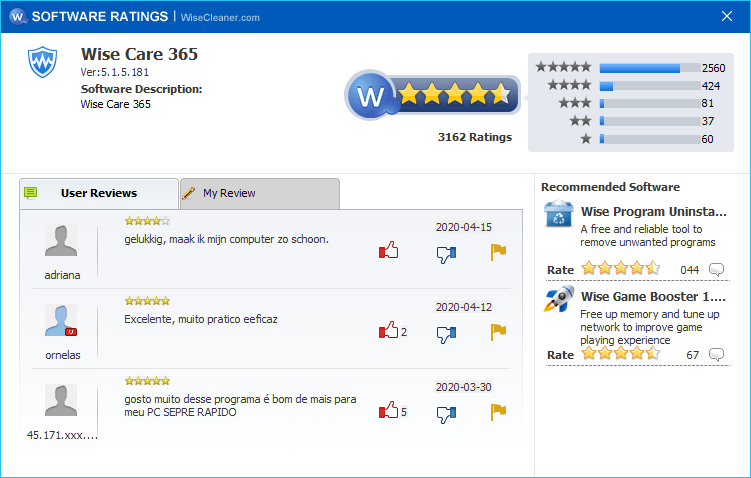
Click the yellow pentagram can open the rating window. Here, you can view other users' comments about this program, and decide whether to disable automatic running. You can also submit your opinions and ratings, and share them with other users.
3. Task
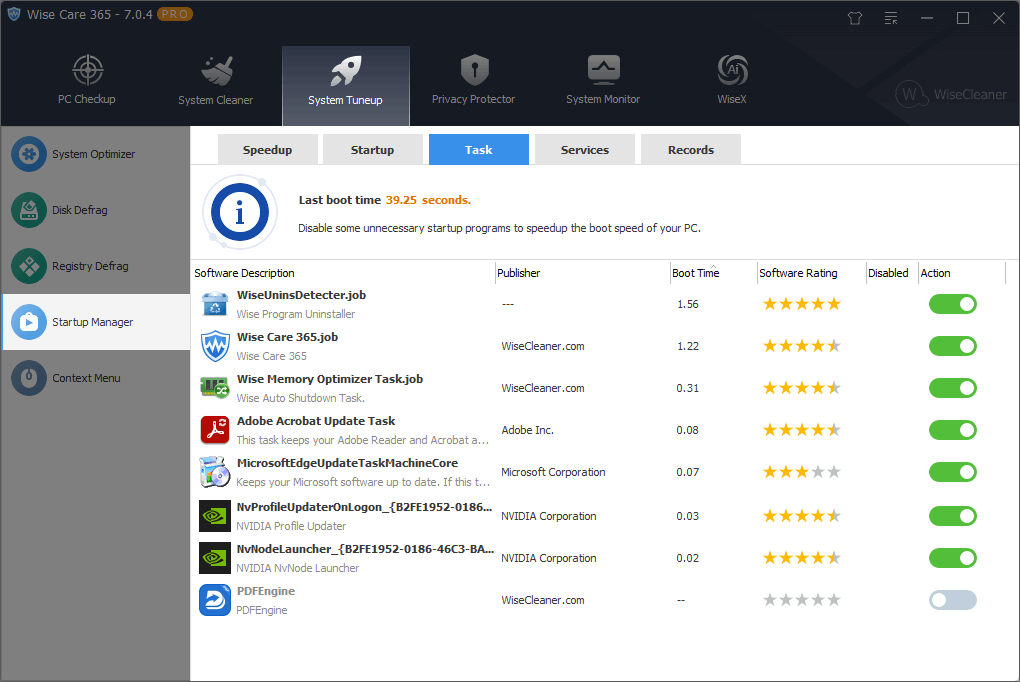
It displays the scheduled tasks that run automatically when the system starts.
4. Services
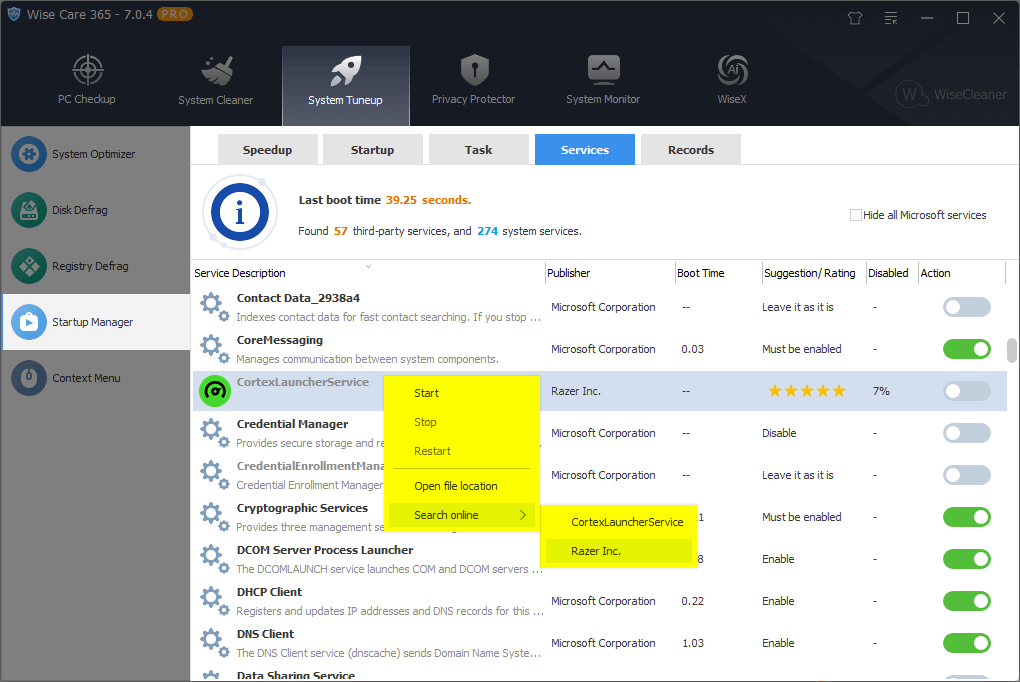
The Services panel lists all the services that have been installed, including Windows system services and services of third-party programs. By default, it is sorted by boot time, or you can click the title bar to reorder. For example, sort by service name or publisher, etc.
If the text of the Service Description is highlighted, it means that the service is currently running. For example, Windows Connection Manager.
If the text of the service description is gray, it means that the service is currently stopped. For example, Microsoft Edge Update Service.
Suggestion
There are 4 types of suggestions for services: Must be enabled, Leave it as it is, Enable, Disable.
| Name | Explanation |
|---|---|
| Must be enabled | This service is a core service of the Windows system and cannot be turned off or disabled. |
| Enable | It is recommended to enable this service. |
| Leave it as it is | Keep this service in its current state. |
| Disable | It is recommended to disable this service. |
Hide all Microsoft services
Wise Care 365 displays all services by default. Tick ⌈ Hide all Microsoft services ⌋ in the upper right corner to display the services that only installed by third-party programs.
Turn OFF/ON services
Click the button behind the service to enable or disable the service to run automatically.
, It means the service will run automatically when the system starts. Click the button to change the startup type to Manual.
, It means the service does not run automatically when the system starts. Click the button to change the startup type to Automatic.
"Turn off" the service refers to changing its startup type to "Manual" rather than disabling it. To turn the service back on, you must restart the system for the changes to take effect.
Rating
Take a look at other users' evaluations of this automatic startup service and decide whether to prohibit automatic running. You can also submit your opinions and ratings to share with other users. Only services installed by third-party programs can be rated.
Right-click menu in Services
Right-click a service, you will see the context menu with 5 options. Start, Stop, Restart, Open file location, Search online.
Start
If a service is not running (the text of the service description is gray), this action will start it.Stop
If a service is running (the text of the service description is highlighted), this action will stop it.Restart
If a service is running (the text of the service description is highlighted), this action will stop it, then start it again.Open file location
This action will open the directory of the file associated with this service.Search online
It has 2 sub-options, use Google to search for the name of the service, or the publisher of the service.
5. Records
This feature requires a Wise Care 365 Pro license. Buy it now!
The startup items optimization log, what program is optimized at what time. You can click the Restore button to resume the automatic running of the program or service, or you can click One-click Restore to undo all optimization.