Advanced Cleaner
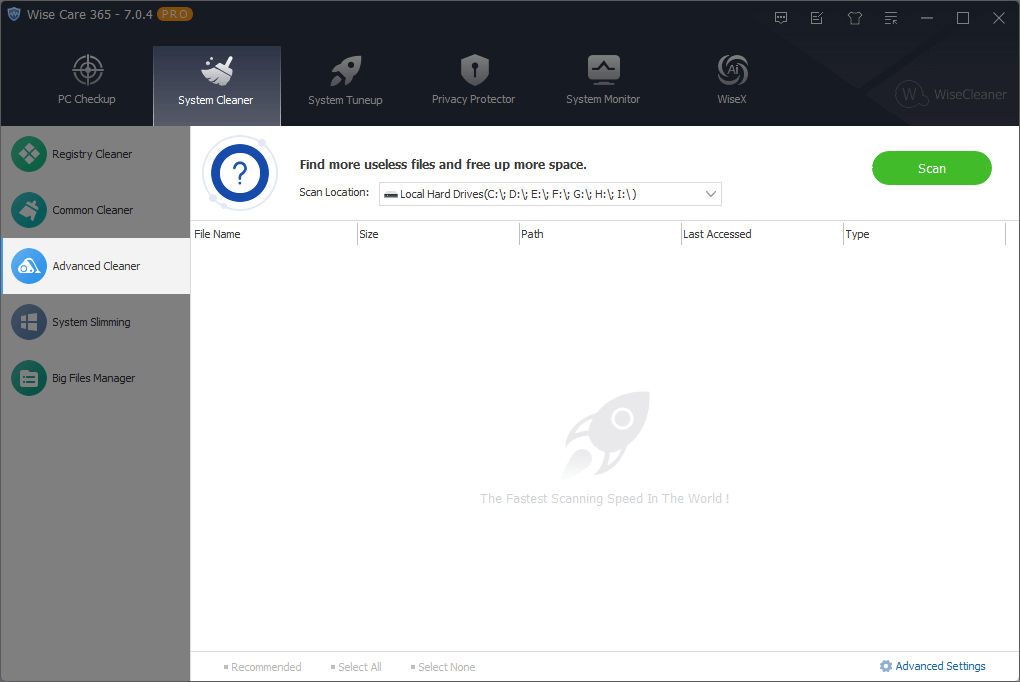
Scan and clean specific types of files in one or all local drives and removable disks. It also supports emptying specific folders.
1. Select the locations that need to be scanned
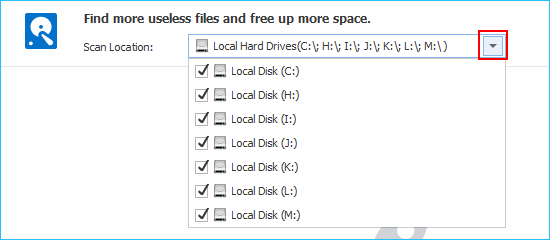
To the right of the scan location, click the down arrow to expand the list of drives and select the drives that need to be scanned. All available drives are selected by default.
2. Advanced settings - Select the file types that need to be scanned
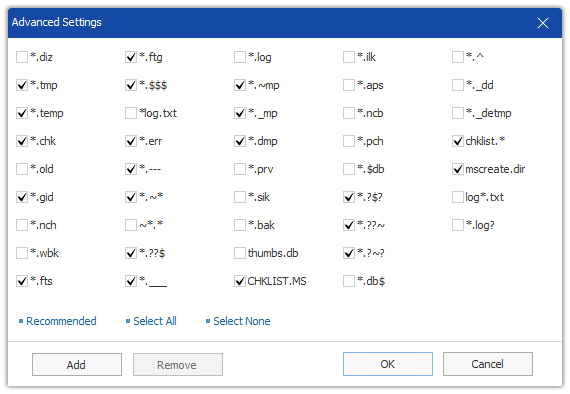
Wise Care 365 finds and cleans files in the specified local drives by default: *.tmp, *.temp, *.chk, *.gid, *.dmp, and so on, total 21 types of files. And other 22 types of files that can be selected for cleaning. You can click the button ⌈ Advanced Settings ⌋ in the lower right corner of the window to open the settings window and select the file type that needs to be cleaned.
At the same time, you can also click the buton ⌈ Add ⌋ to add other file types that need to be cleaned up.
Before adding a new file type, please double-check that files of this type can be safely deleted. Once deleted, files cannot be recovered.
Average users should NOT use the "Add" function! It is recommended to use the default settings!
3. Select the files that need to be deleted
After the scan is complete, the scan results are sorted by location by default. You can also click the title bar to reorder, for example, click the File Name, the list will be sorted by file name; click the Size, the list will be sorted by file size. The list also will be sorted by File Path, file Last Accessed time, and File Type.
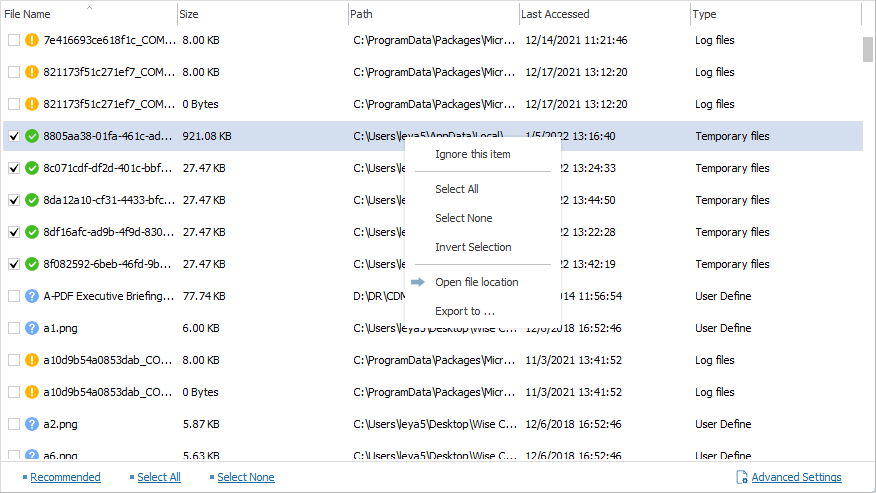
 : It means that this file can be safely deleted.
 : This means Wise Care 365 cannot fully verify the safety of deleting this file. Therefore, the decision to remove it is left entirely to the user's discretion.
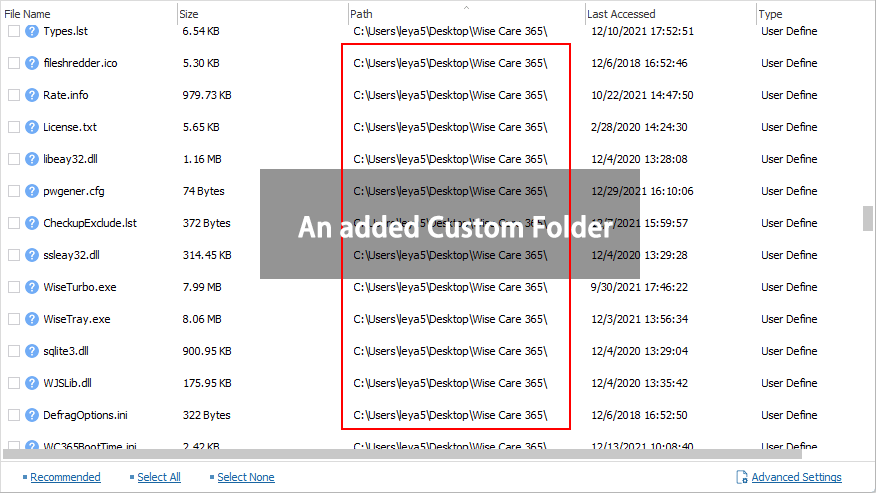
 : This indicates that the file type was manually added by the user under Advanced Settings, or it resides in a custom folder configured via Menu -> Settings -> Cleaner.
Right-Click Menu
Right-click on an item, you can call out the context menu.
Ignore this item
Add this file to the Exclusion list, Wise Care 365 will neither scan nor clean it again. You can view the content of exclusion in Menu -> Settings -> Exclusion.Select All
Select all files.Select None
Do not select any files.Invert Selection
If you just don't want to delete a few files, you can select these files first, and then use the Invert Selection function, you can quickly select other files which need to be deleted.Open file location
Open the location of the selected file.Export to ...
Export and save the scan results as a text file.
4. Custom Folder
Advanced Cleaner also supports clearing all files from specified folders. You can add the folders you wish to empty by going to Menu -> Settings -> Cleaner.
Note: This operation is intended to empty the folder, not to perform a general cleanup. "Advanced Cleaner" will simply clear out all contents within that folder!!!